Mute Documentation

If you don’t find what you looking for, do not hesitate to contact me with.

Getting Started

Mute is distributed as a signed ZXP package. We recommend using Anastasiy Extension Manager to manage Mute easily. You can also use ZXP Installer

Anastasiy Extension Manager

  • Download the ZIP package and extract it to a folder. Inside the folder, you’ll find the “mute.zxp” file.
  • Open the Anastasiy Extension Manager and select Adobe After Effects as your installation application.
  • Click the “Install” button in the Extension Manager and choose the “mute.zxp” file you extracted earlier.
  • You should receive a confirmation message indicating successful installation.
  • Finally, restart Adobe After Effects, and you’ll be able to access Mute from the “Window” > “Extension” menu.

ZXP Installer

  • Download the ZIP package and extract it to a folder. Inside the folder, you’ll find the “mute.zxp” file.
  • Open the ZXP installer.
  • Drag and drop the “mute.zxp” file onto the ZXP installer window.
  • Restart Adobe After Effects, and you’ll find Mute in the “Window” > “Extension” menu.

Manual Installation

In some cases, users may encounter installation errors or post-installation issues due to incorrect folder permissions. Typically, such problems can be resolved by manually installing Mute.
  • Uninstall Mute if it’s already installed. You can use https://install.anastasiy.com/ if you can’t find the Mute folder in your Adobe extension folder.
  • Rename “Mute-Vx.x.x.zxp” to “Mute-Vx.x.x.zip”.
  • Double click on “Mute-Vx.x.x.zip” to extract it.
  • Rename the extracted folder to “com.mographfactory.mute”.
  • Copy the folder to the extension folder:
    • For macOS: Library/Application Support/Adobe/CEP/extensions/
    • For Windows: C:\Program Files (x86)\Common Files\Adobe\CEP\extensions
  • Restart Adobe After Effects.
To access Mute’s features, you’ll need to create a Mute account. Follow these steps to get started:
  • Click the “SignUp” button.
  • Fill out the SignUp form with your information.
  • Read and agree to the Terms & Conditions.
  • Click the “SignUp” button to complete the registration.
Your registered email address will serve as your Mute User ID.

License

Mute operates on a subscription model. You must subscribe to access all of Mute’s features, available in both monthly and yearly plans. Subscriptions are managed through Gumroad. After subscribing, you will receive an email containing your 32-digit license key.
Once you have your Gumroad license key, follow these steps to activate your license:
  • Go to Settings > Account Settings.
  • Click “Activate License.”
  • Enter your 32-digit License Key from Gumroad.
  • Wait for the activation confirmation.
  • Sign out and then sign in to access all Mute features.

Account

Change Your Email Id associated with Mute account.
Change Your Existing Password.
If you wish to unlink your registered license key from your Mute account, follow these simple steps:
  • Navigate to Settings > Account Settings.
  • Locate and click on the “Remove License” option.
  • Provide your login credentials to verify the process.
  • Wait for confirmation of the unlinking process.

Unlinking the license key does not result in the cancellation of your subscription. You will continue to be charged for your subscription. Instead, this action releases your license key from its association with the current Mute account, allowing you to link it to a different Mute account if needed.

If you wish to completely delete your Mute account for any reason, follow these steps:
  • Navigate to Settings > Account Settings.
  • Find the “Delete Account” option.
  • Follow the prompts to confirm the account deletion.
  • Wait for confirmation that your account has been deleted.

Deleting your Mute Account means losing all your cloud data, and it's a permanent decision. You'll also lose access to many Mute features. Please note that this action doesn't cancel your subscription, and you'll continue to be charged at your chosen frequency.

The Mute license is distributed via Gumroad. To cancel your subscription, kindly visit your Gumroad account and follow the cancellation process.
Mute licenses are available via Gumroad. To switch your subscription, cancel your current plan and sign up for a new one. Keep in mind, your new plan won’t account for any remaining time on the old one. We recommend making changes around your renewal date to avoid double charges. Your license remains active until your next renewal date even after cancellation. Don’t forget to swap out the old license key with the new one on your Mute account. If you encounter issues, reach out to us through support form.

Home

Mute Extension 1.4.0 Anchor Module
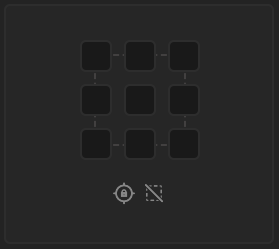
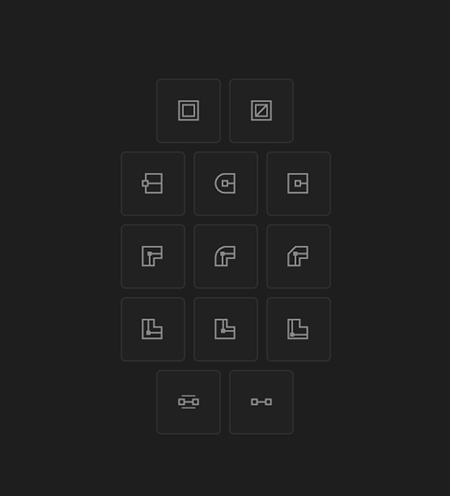
To reposition the anchor point, select one or multiple layers and click on any of the 9 anchor points in the Anchor Module. If your layers have animations, the animation will adapt to the new anchor point without affecting the layers’ position or animation itself.

Lock Anchor

When activated, the anchor point remains fixed in place, and the layers align themselves based on the anchor point's position.

Ignore Mask

By default, anchor point repositioning considers the mask. When "Ignore Mask" is activated, the anchor point will disregard the mask during repositioning.

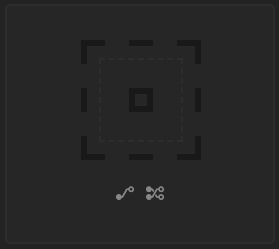
To create a parenting null, simply select a layer or a group of layers and then click on the Null Icon. This Null Icon provides you with 9 anchor points, each representing a different anchor point position for the null. Clicking on the center point will create a null with the anchor positioned at the center, and clicking on any other point will place the anchor point accordingly.

If you wish to create a 3D null, hold down the Alt or Option key while clicking on the Null Icon.

Layer Parent

When enabled, it will generates connected Null layers for each individual layer, and additionally, it will create a master Null that connects all these newly created Null layers.

Preserve Parent

Enabling 'Preserve Parent' will ignore any existing layer connections and instead generate a Null layer that links all the unconnected layers together.

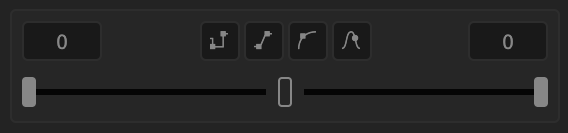
Select the desired keyframes and adjust the slider to modify the ease out and ease in influence of the keyframes. Alternatively, you can enter ease influence value in the range of 0-100 in the input field. Activate “Lock Slider” to adjust the in and out influence equally.
Hold key: Quickly convert keyframe to Hold Keyframes.
Linear Key: Convert keyframes to Linear keyframes.​
Bezier Key: Convert keyframes to Bezier Keyframes​
Rove Across Key: Turn keyframes into Rove Across keyframes. This feature specifically applies to spatial keyframes such as position. Hold Alt or Option key to remove Rove Across keyframes.
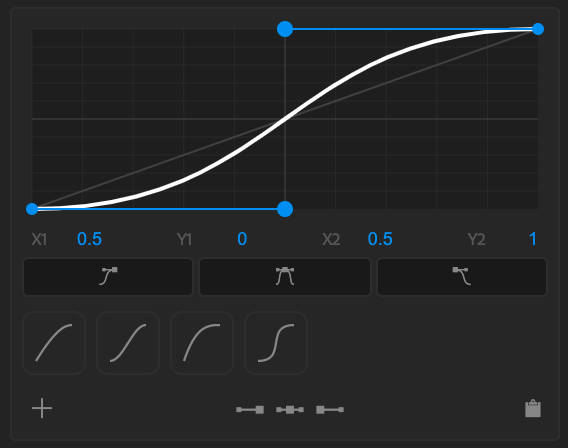
To modify the Ease Curve, you have a few options. You can drag the Ease Out or Ease In tangent handles, with the bottom left handle affecting Ease Out, and the top right handle affecting Ease In.
Alternatively, you can enter CSS ease values in the X1, Y1, X2, Y2 fields to customize the ease curve precisely.
To apply your changes, use the corresponding buttons: ‘Apply Ease Out’ for adjusting ease-out, ‘Apply Ease In’ for ease-in adjustments, or ‘Apply Easy Ease’ to modify both ease in and ease out for the selected keyframes.
You have the option to save your custom Ease Curve as a preset for future use. To create a new preset, click the “+” icon. You can also choose to display your saved presets on the home screen, where they will appear below the ease curve.
To apply a preset, double-click on it, and by default, it will apply ease using Easy Ease method to the selected keyframes. You can change this default apply method in the Settings > Presets.
Alternatively, a single click on the preset will update the Ease Curve with the preset’s ease value. From there, you can apply the ease to your selected keyframes using one of the apply method buttons.
To retrieve ease data from keyframes, first, select the specific keyframe you want to read. Then, click on either the “Read Ease Out,” “Read Easy Ease,” or “Read Ease In” icon, depending on your preference.
This functionality allows you to read the ease value from individual keyframes. If you happen to select multiple keyframes, it will provide you with an average value that combines both the ease out and ease in of those selected keyframes.
The “Copy to Clipboard” function allows you to copy the ease curve data to your clipboard in the format of comma-separated CSS ease data, which consists of X1, Y1, X2, and Y2 values.
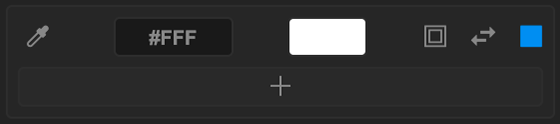
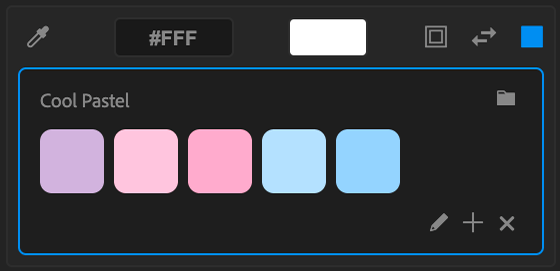
When you first open the Home Palette, you’ll notice a “+” icon, which you can click on to create a new palette. After you’ve created a palette and selected “Add to Home,” you’ll be able to view your newly created swatches in the Home Palette module.
Additionally, you have the option to include any previously created palette in the Home Palette module. Simply navigate to the palette preset window and click on the “Home” icon next to the palette you wish to add to your Home Palette.
You can choose from four different methods to apply colors to layers.
1. Universal Color Picker: You can use the universal color picker to select colors from any part of your desktop. Just pick the layers where you want to apply the colors and click on the eyedropper icon to select a color from anywhere on your desktop.
2. Hex Code: You can input the color’s hex code to apply it to the selected layer.
3. Built-in Picker: You also have the option to select colors from the built-in picker. By clicking on the color box, you can choose your desired color. You’ll find two picker options: “Box” and “Wheel,” which allow you to fine-tune your color selection.
When applying colors to a Text layer or Shape Layer, you have the flexibility to choose whether to apply colors to the Stroke, Fill, or both. You can do this by selecting “Update Stroke” and “Update Fill.” Additionally, there’s an option to swap between the Fill and Stroke colors with the “Swap Stroke and Fill” button.
4. Palette: To apply colors from the palette, simply select the layer and click on the desired swatch within the palette.
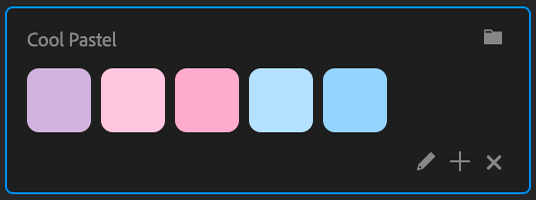
You can easily edit or add a new palette by using the “Edit” or “Add” icons. If you want to remove a palette from the Home Palette, you can do so by clicking the “x” icon. This action won’t delete the palette entirely, and you can still access it in the palette preset window.

Limitation on Text: You cannot apply colors to specific parts of the text. If you have different colors for different characters in the text, applying colors will change the color of the entire text layer.

Tools

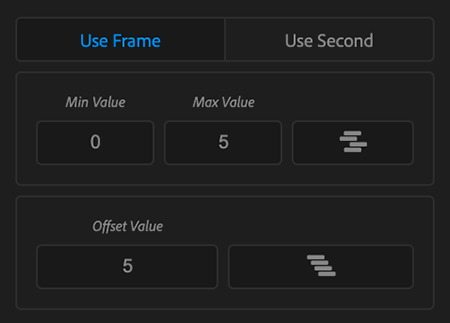
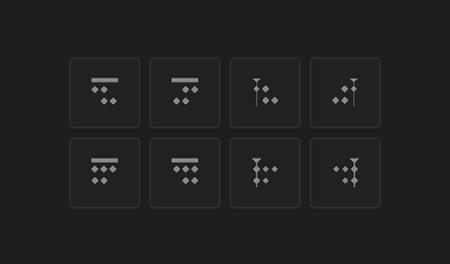
The Layer Organizer allows you to both randomize and arrange layers, and you have the flexibility to perform these operations based on either frames or seconds.
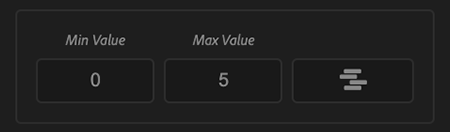
To randomize layers, select the layers you want to work with, then input the “Min Value” and “Max Value” of your choice. Finally, click on the “Randomize” button. This action will offset the selected layers within the specified range, either in frames or seconds.
For instance, if you set the “Min Value” and “Max Value” to “0” and “10,” the layers will be randomly offset by a number of frames or seconds between “5” and “10” from their original positions.
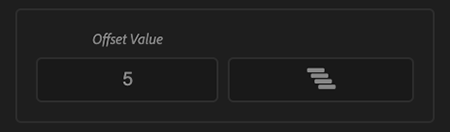
To arrange layers, select the layers you want to work with. Next, input the desired “Offset Value” and click on the “Arrange” button. This action will arrange or sequnce the layers and apply the specified offset in either frames or seconds, depending on your preference.
To arrange or sequence layers in ascending order, make sure to select the layers from the bottom to the top. Conversely, for descending order, select the layers from top to bottom.
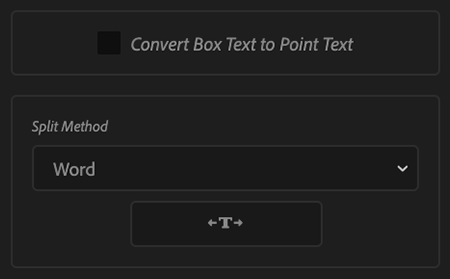
With “Text Split, you can split any text layers by Characters, words, lines. You can also split text with custom words or character.
To split a text layer, select the text layer, choose your preferred split method, and then click the “Split Text” button.
Mute Extension Text Split Convert Boxt text to Point text
When splitting box text, the result will also be box text. This is fine in some cases, but not always. To change this, select “Convert Box Text to Point Text” before splitting.
The Stroke Properties Module offers a range of options for manipulating the strokes of shape layers. You can quickly enable or disable strokes for layers, providing you with greater flexibility in controlling the appearance of your shapes.
This module allows you to switch between different stroke cap styles, such as Butt Cap, Round Cap, and Projecting Cap.
With this module, you can fine-tune the corner joins of shape layers, choosing between Miter, Round, and Bevel Join.
The module also includes options to align the stroke to the Center, Outside, or Inside, similar to features found in software like Illustrator and Photoshop. This alignment capability gives you precise control over your shapes, enhancing your design workflow.
Another valuable feature is the ability to enable or disable “Maintain Stroke Width.” This function ensures that when you scale a shape layer, the stroke width remains proportionate.
The “Move First Key to Layer’s In-Point” function shifts the initial keyframe of the selected keyframes to the layer’s in-point. Subsequently, the remaining keyframes will adjust proportionally based on their original positions.
Likewise, when using the “Move Last Key to Layer’s Out-Point” will reposition the final keyframe of the selected keyframes to align with the layer’s out-point. The rest of the keyframes will adjust proportionally accordingly.
By default, this operation considers all the selected keyframes across all selected layers. If you prefer to apply it to individual layers, simply hold down the Alt or Option key.
In the same way, “Move First Key to Current Time” and “Move Last Key to Current Time” functions reposition the first or last keyframes of the selected layers to the current time, which corresponds to the position of the timeline playhead.
Similarly, To apply these adjustments to individual layers, hold down the Alt or Option key.
The “Align First Keys to Layer’s In-Point” function aligns the first keyframes of all selected properties to the layer’s in-point. Following this, the remaining keyframes adjust accordingly based on their original positions.
“Align Last Keys to Layer’s Out-Point” aligns the last keyframes of the selected properties to the layer’s out-point, while the other keyframes adjust accordingly.
Likewise, the “Align First Keys to Current Time” and “Align Last Keys to Current Time” align the first or last keyframes of all selected properties to the current time, corresponding to the position of the timeline cursor. The remaining keyframes adjust according to their original positions.
“Clone Selected Keyframes” duplicates the chosen keyframes and arranges them so that the first keyframe among the selected ones aligns with the current timeline playhead position.
“Reverse Clone Selected Keyframes” duplicates your chosen keyframes and arranges them in reverse order, aligning the last keyframe of the selection with the current timeline playhead position.
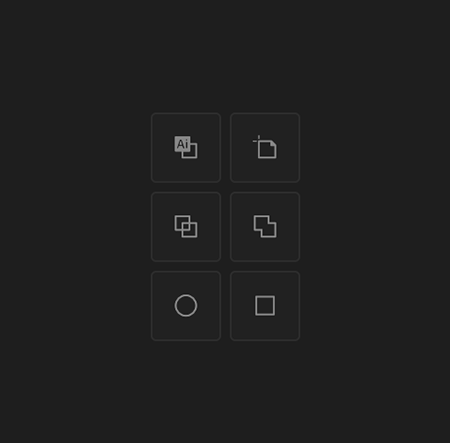
To convert one or multiple vector layers into shape layers, select the desired vector layers and click on “Convert Vector to Shape.”
At times, when importing AI files and converting them into shape layers, you might encounter empty art board artifacts. You can easily eliminate them with a single click using the “Remove Art Board” option.
To separate paths within one or multiple shape layers into individual shape layers, select the shape layers and click the “Expand Shape”. This will split the paths into individual shape layers.
Select multiple shape layers and click “Combine Shape” to merge them into a single shape layer.
With a single click, you can easily generate a perfect circle or square, regardless of the composition’s aspect ratio.
To create a bezier path instead of a primitive shape layer, just hold down the “Shift” key.
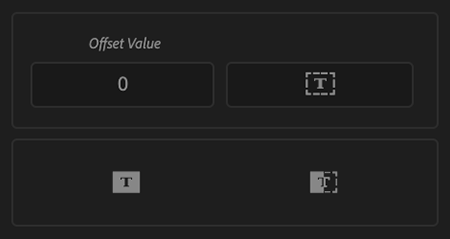
To generate a bounding mask on a text layer, simply input an offset value and then click on “Create Bounding Mask.” The offset value serves as padding around the masked object.
Similar to the bounding mask, the “Create Bounding Shape” function generates a shape layer around the object, and you can specify the padding using the offset value.
“Create Dynamic Box” generates a dynamic shape layer around the text. This shape layer will adjust dynamically according to the text’s length. It also creates a padding control on the newly created shape layer, enabling you to fine-tune the padding of the shape layer as needed.
The Project Organizer simplifies the process of tidying up a cluttered project with a single click. Just click on “Organize Project” to automatically sort project items into predefined folders under the “Assets” folder.
By default, all items are moved to the “Assets” folder. However, if you want to exclude specific items from being organized under “Assets,” just select those items before clicking the “Organize Project” button.
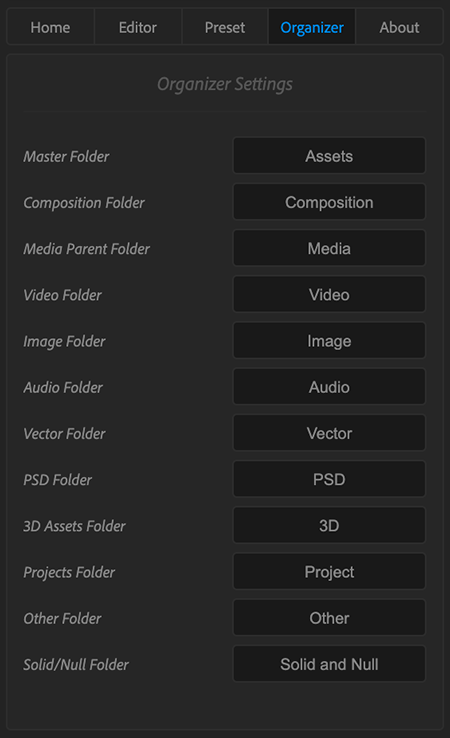
To customize the names of the predefined folders for different types of items, navigate to the settings > Organizer window. From there, you can easily modify the folder names to your need.

Expression / Script

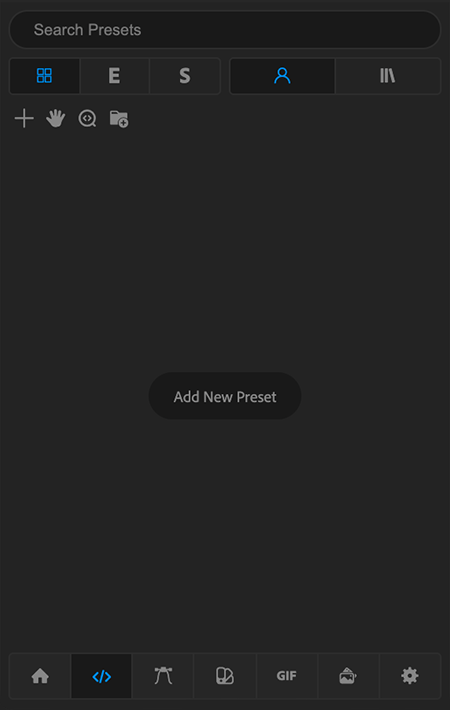
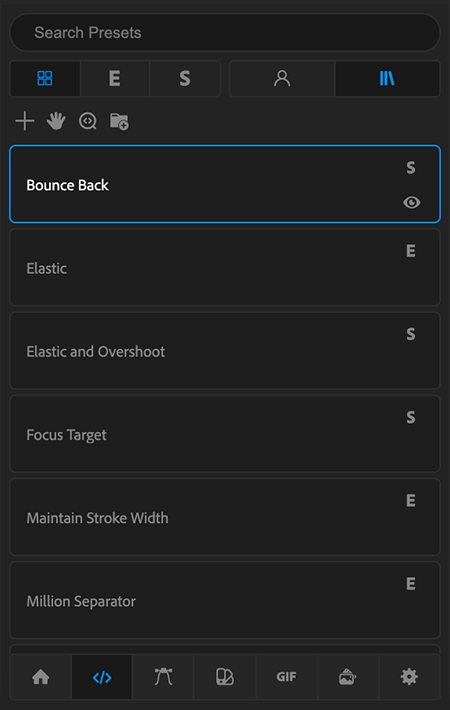
Mute Extension Expression Script Preset
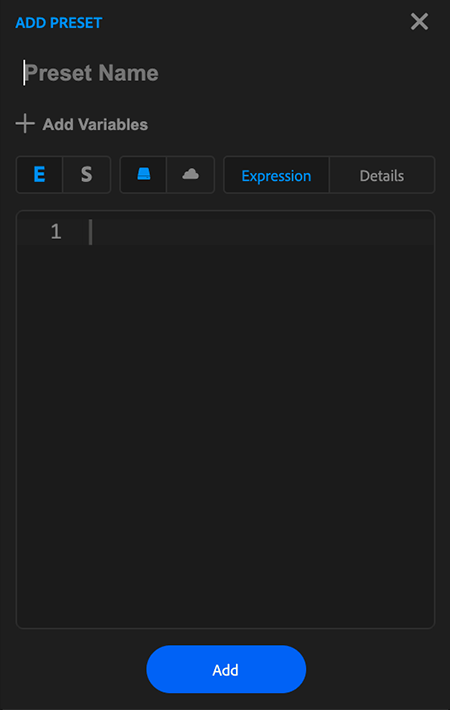
When you first access the Expression / Script preset window, you’ll find the “Add New Preset” button in the center of the screen, as well as a “+” icon at the top. Simply click on either of these options to open the “Add Preset” window.
To create a new preset, simply follow these steps:
  • Provide a name for your preset.
  • Select the preset type, choosing between “Expression” or “Script” by clicking on the respective icons.
  • Specify whether you want to save this preset locally or in the cloud.
  • Add your Expression or Script.
  • Include some details about this expression for future reference.
  • Finally, click on the “Add” button to create your preset.
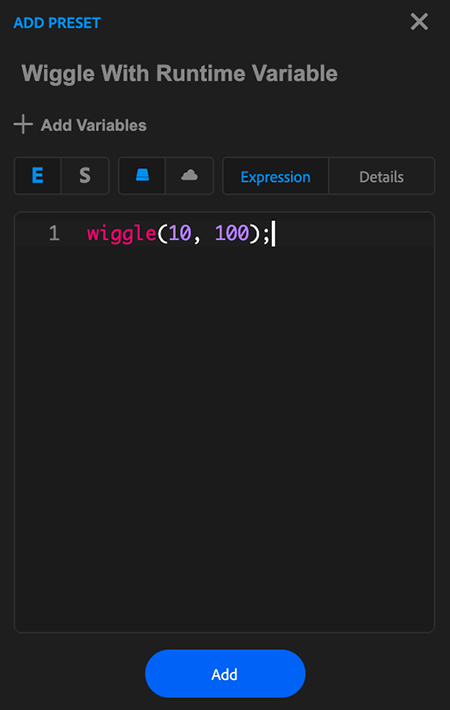
To create a runtime variable for your preset, first input all the fields as you would create a normal preset.
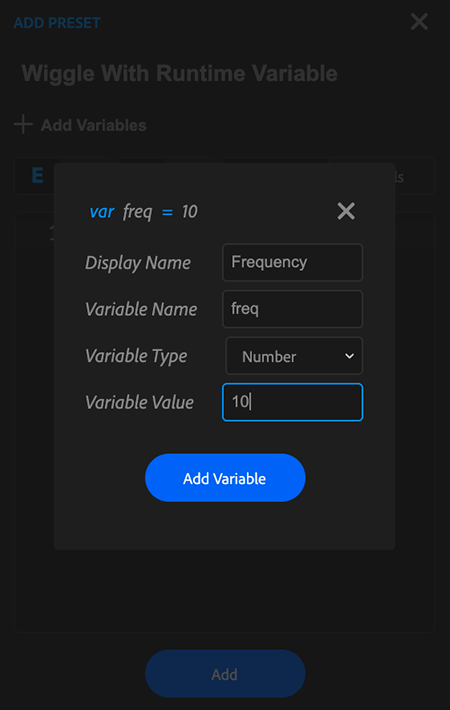
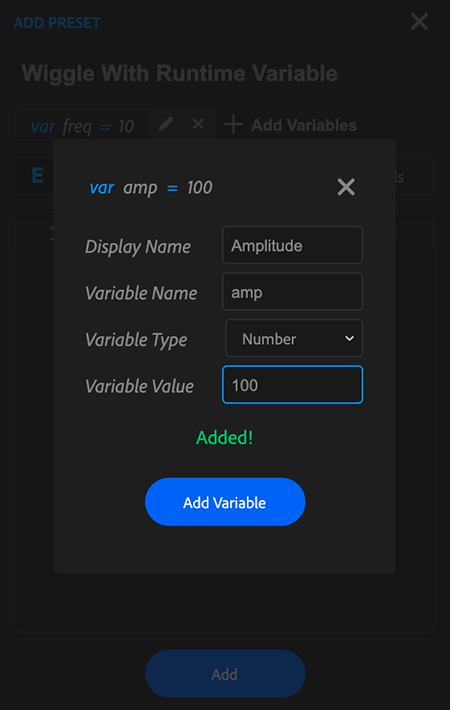
To create variables for your preset, Click “+ Add Variables” to open the variable window. There are four fields you need to fill:
  • Display Name: This can be anything that you need to show when you will be prompted for variables while applying this preset.
  • Variable Name: The variable name is the actual variable you want to create. This will be referred to in your preset and it is case-sensitive.
  • Variable Type: There are three types of variables you can create: “String Type” (any text), “Boolean Type” (True or False type), and “Number Type” (any number).
  • Variable Value: Variable value is the initial value for this variable.
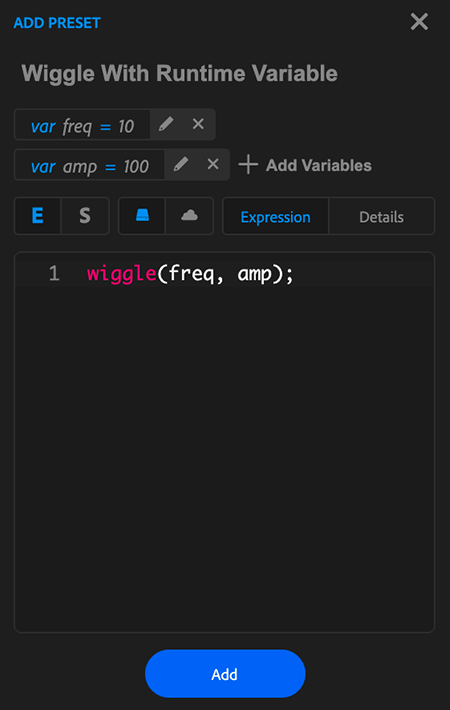
Now, create the variable and close the window.
Next, replace the values of your expression with the variableName.
Your newly created variables will be listed below the Preset name. The variable format must be as “var variableName = variableValue”.
Click “Add” to create the preset.
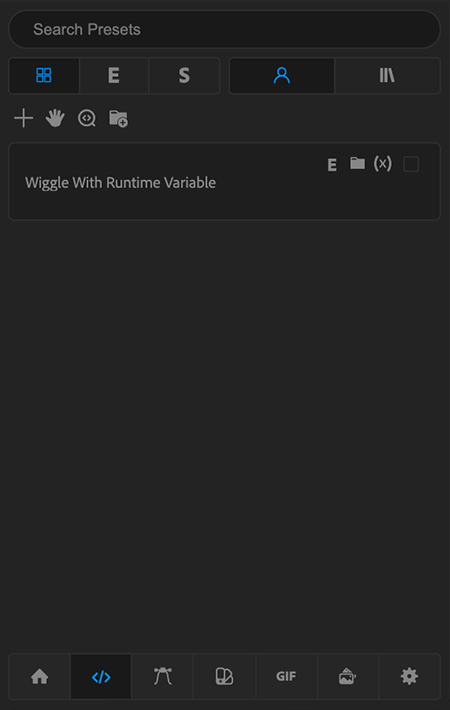
Your newly created preset with variables will have “(x)” label on the preset.
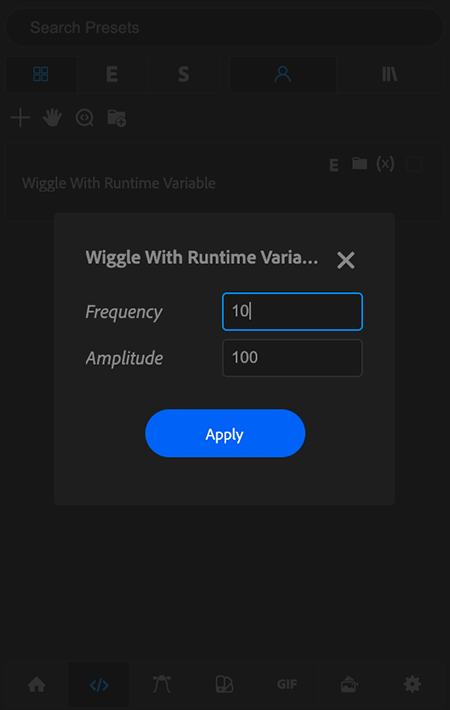
Now, when you double-click on the preset to apply, you will be presented with a window to modify the variable’s value.
Mute Library is a preset library that I periodically update. It contains various useful script and expression presets. You can access detailed information about each preset by clicking the “eye” icon. Applying these presets is as straightforward as applying the ones you’ve created yourself.
Slide into My Inbox: Let’s Talk Mute! ✌️